← All guides
Extra features
Use extra features
Extend your editing with masks, cropping and straightening.
2 min
Step 01 — Open Edit photos
Go to Library → Plug-in Extras → Edit photos.
Step 02 — Configure the features
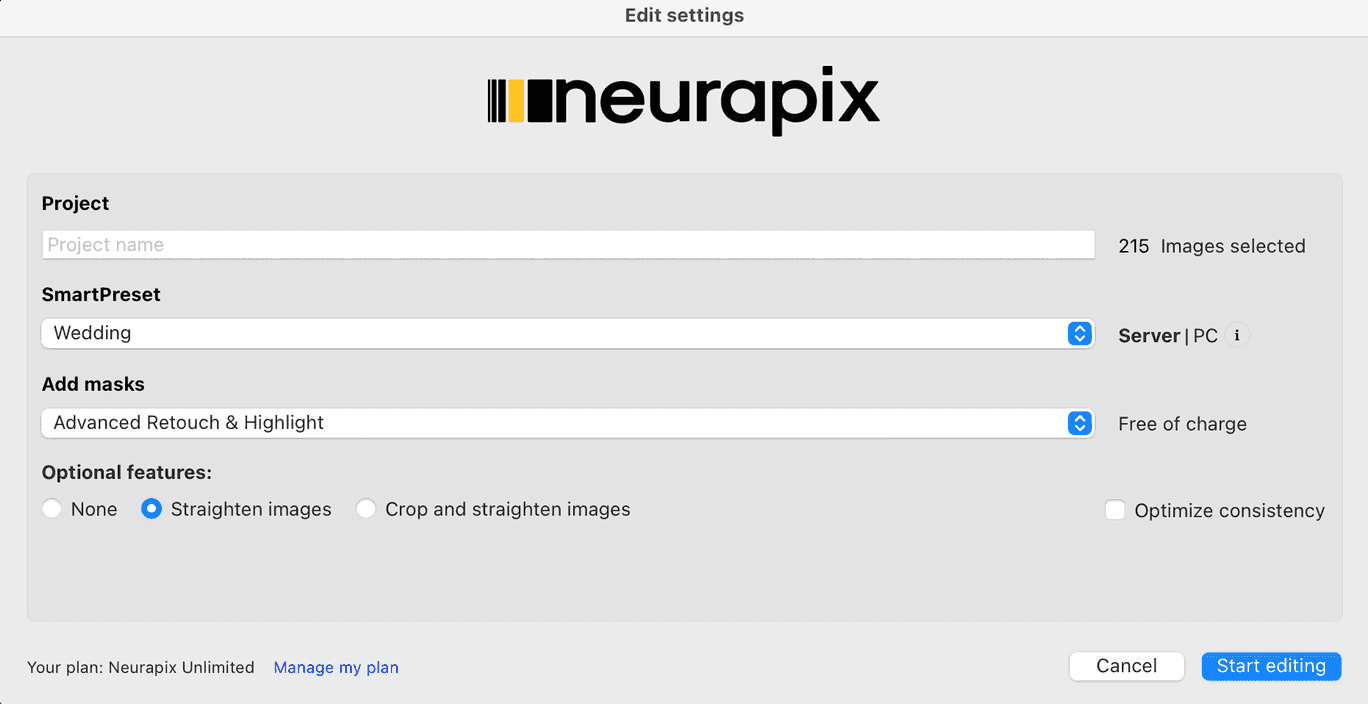
In the “Editing settings” dialog, choose your project and SmartPreset. Under “Add masks” you can select e.g. “Advanced Retouch & Highlight” — free of charge.
Under optional features, choose your crop: “No cropping”, “Straighten only” or “Crop and straighten”.
Finally, click “Start editing”.
💡 Tip: “Crop and straighten, plus consistency optimization” costs one additional credit per image.
Step 03 — Download the edit
As soon as editing is complete, you’ll be notified by email. Download the results via Library → Plug-in Extras → Download edit.
More than presets.
Masks, cropping and straightening complete your editing.
Everything at a glance


Start with 1,000 free AI edits.
Copyright © 2026 Neurapix GmbH. All rights reserved.